Official Guide / First-Time Setup
Shadowrocket
Import and Connection Guide
Start with the details you already have, then add them, choose Global Routing, connect, and verify the result. For your first setup, follow the sections in order; if you have already imported your details, go straight to the mode and connection steps.
- An existing subscription or server details
- A five-step setup process
- Verify the actual route after connecting
01 / Add Server · Subscribe
Add a Server or Import a Subscription
Open Shadowrocket and stay on Home. Don’t turn on the connection switch at the top yet. First identify which details you have: a subscription link used to update a server list, or the settings for a single server, including its protocol, address, port, and authentication details. These use related but different entry points. A subscription URL is not a server Host, and a single server address is not a subscription link.
If You Have a Subscription Link: Choose Subscribe
On Home, tap Add Server, or use the add option on the page. Tap Type and choose Subscribe, then paste your complete subscription link into the URL field. Parameters after a question mark may be needed to identify the subscription, so copy the full link—not just the domain—and don’t add spaces or line breaks at either end. If there’s a name or note field, enter a label you’ll recognize, then save and return.
Wait for the subscription to load, then return to Home and check the group and its server entries. If the subscription name appears but the group contains no servers, don’t proceed to connecting yet: the server list may not have been retrieved successfully. Check that you pasted the complete link, then use the subscription entry’s update option to try again. Subscription links can contain personal information; don’t post them publicly or include them in screenshots. If updating still fails, follow the import troubleshooting steps below.
If You Have Details for a Single Server: Fill In Each Field
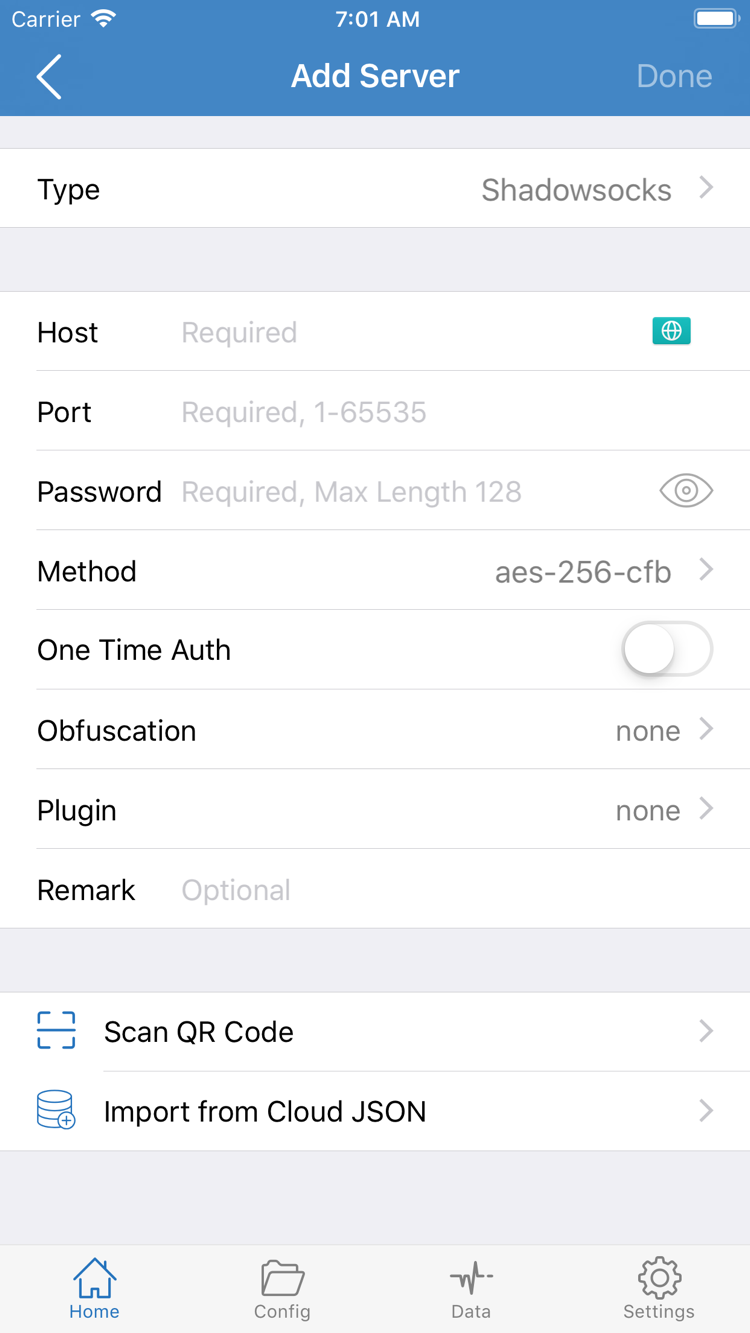
Go to Add Server and select Type to match the protocol in your details. Enter the Host, Port, and required authentication fields. The official screenshot shows Password and Method fields, but fields vary by protocol; don’t assume the screenshot shows a universal form. Use your existing details for Method, transport, TLS, and other options. Don’t substitute settings just because their names look similar.
Enter the server domain or address in Host and the port from your details in Port. If the address and port are listed separately, enter them in their respective fields; don’t paste a full web address into Host. Save, return to Home, and check the entry under SERVER. If your details are provided as a QR code, use Scan QR Code in Add Server. Use Import from Cloud JSON only if your details are specifically provided as a compatible Cloud JSON file. After scanning, check the detected Type and address.
You’re done with this step when the imported server appears on Home and you can open its details to check the fields. This confirms only that the details have been saved—not that the server is reachable. Next, decide how these details should be used for connections, then select a server.
02 / Global Routing · Config
Choose a Global Routing Mode
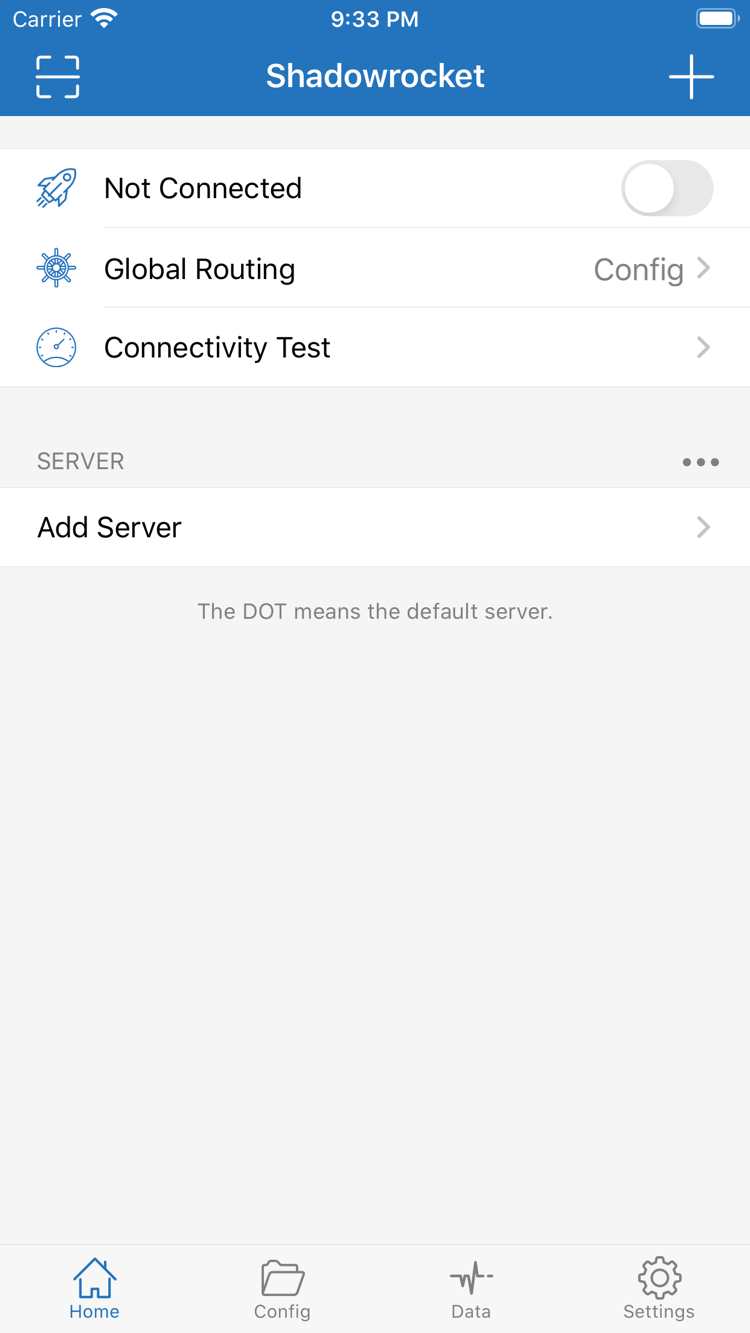
Return to Home and tap Global Routing. This setting determines how traffic is handled; it doesn’t create a server or fix incorrect server details. The three modes are Config, Proxy, and Direct. Decide whether you want to use rules or compare connection paths before choosing. Don’t switch modes repeatedly just because one sounds more comprehensive.
Config: Follow the Current Configuration
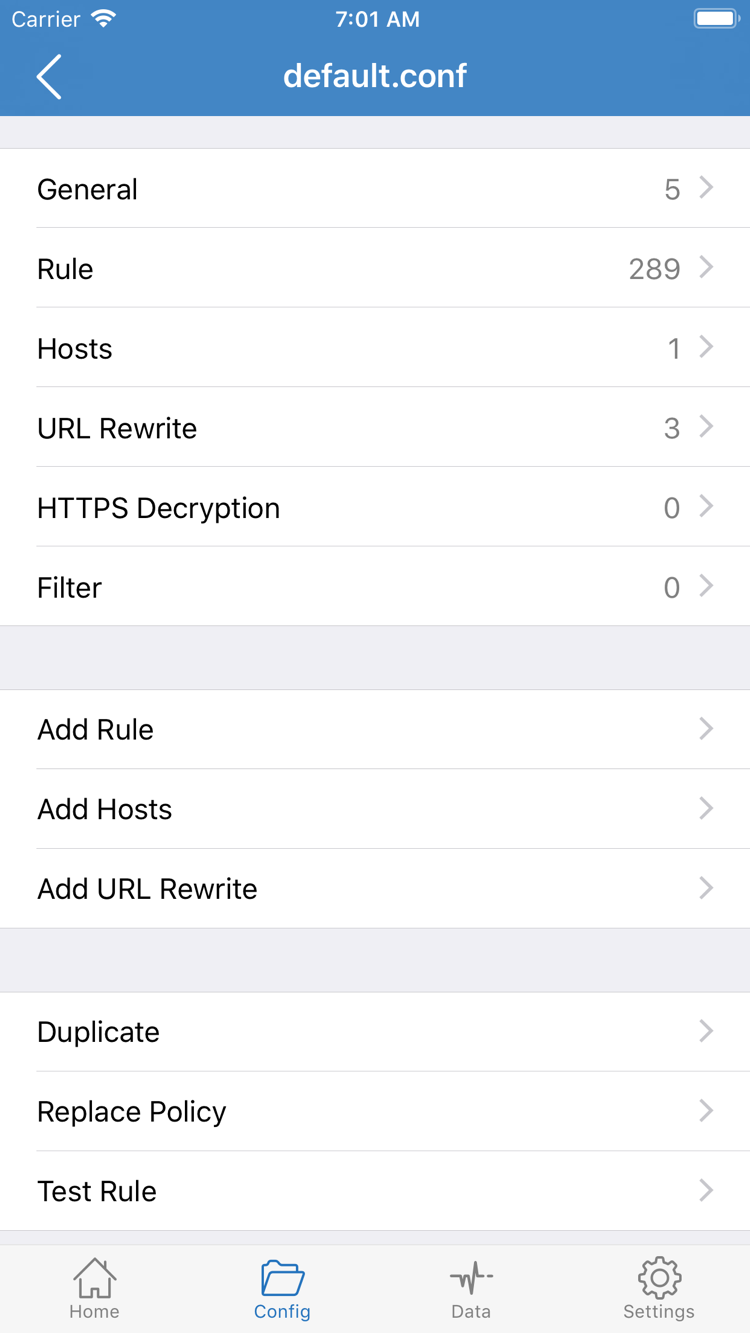
With Config selected, connections are handled according to the rules and policies in the current configuration. Open the app’s Config page and confirm that the intended configuration file is selected, then review its contents. The screenshot’s General, Rule, Hosts, URL Rewrite, and HTTPS Decryption sections are different parts of the configuration editor. For a first connection, check the selected configuration and its Rule section; you don’t need to edit every section.
A subscription is mainly used to maintain a server list; a configuration file describes how traffic is handled. They are not the same thing. After importing a subscription, don’t assume all traffic will be routed as expected. Check that the selected configuration contains the rules you need and that their referenced policies are available. If you already have a working configuration, leave it unchanged and save a copy before editing. You don’t need to enable HTTPS Decryption or add unfamiliar rules just to complete a first connection test.
Proxy and Direct: Understand the Connection Path
With Proxy selected, relevant connections use the proxy path. This can help check whether the selected server can reach a destination, but the result still depends on the server and destination being reachable. With Direct selected, relevant connections use the direct path, so it won’t verify whether a server works. If you’re checking a newly imported server, a page loading while Direct is selected doesn’t prove that the server is working.
Configuration rules are usually matched in order, so specific conditions should come before fallback rules. For example, the rule below matches a specified domain suffix and sends everything else to FINAL. example.com is only an example domain, not a working server. This example explains how rules work; you don’t need to copy it over your existing configuration for a first connection.
DOMAIN-SUFFIX,example.com,PROXY
FINAL,DIRECT
Before moving on, return to Home and check the current Global Routing mode. To use existing rules, confirm Config and the corresponding configuration. To test a server on its own, note the current mode, switch to Proxy temporarily, then restore the original mode after testing. For more about rule order and policy groups, see Features and Settings. Next, complete your first connection.
03 / Home · SERVER
Select a Default Server and Connect
On Home, select the server you want to use from SERVER or a subscription group. Check for the selection dot beside the entry to confirm it’s selected as the default. Checking server details and selecting a server are separate actions; after returning from the details page, check the selection indicator again. If the list has several entries, choose one for testing and stick with it. Don’t change servers and rules at the same time, or you won’t know which change affected the result.
The default server selection is mainly used by connections that rely on that default. If a policy group in Config has its own selection, individual requests may use that group instead. A selected server therefore doesn’t necessarily mean every rule will use it. For your first setup, keep the known configuration, note which server you selected, and save policy group behavior for after you’ve verified a basic connection.
After confirming Global Routing, turn on the switch at the top of Home. The first time you connect, the system may ask to add a VPN configuration. Check that the prompt names Shadowrocket, then approve it as required and complete any device authentication. This permission creates the corresponding network configuration on your device; it doesn’t import a subscription or charge you again. If you cancel, the app may be unable to connect.
After granting permission, return to Home and check whether the status at the top changes from Not Connected to connected and stays that way. A VPN status on your device only indicates that the corresponding connection has been established; it doesn’t by itself confirm that the remote server, DNS, or every rule is working. If the switch turns off immediately, leave the selected server and mode unchanged, note any system message, and troubleshoot it in the final step. Don’t repeat the authorization process over and over.
To stop the connection, turn off the same switch. During your first test, understand how the manual switch behaves before setting up automatic connection conditions with On Demand. If the connection starts again after you turn it off manually, check On Demand and the related system connection settings. Keep one stable connection active and move on to the next step to verify it.
04 / Connectivity Test · Data
Verify Connectivity and Rule Results
With the connection on, tap Connectivity Test on Home and wait for it to finish before reviewing the result. The outcome depends on your network, the test destination, Global Routing, and related settings. It can help check basic connectivity, but a test to one destination doesn’t represent every website or protocol. If it fails, note the current mode and server rather than relying on an isolated number.
Next, open an app or page you actually need to use and try a new request. A cached page may still appear without making a new network request, so refresh it or open content that hasn’t loaded yet. Check two things: whether it opens and whether traffic followed the expected path. The first shows that this request got a result; the second requires checking the current mode and rules.
With Config selected, open Data to review available connection records. For the destination you just accessed, check any recorded domain, destination address, matching rule, and policy. The fields shown depend on the app’s current logging settings. If you expected PROXY but see DIRECT, check the rules and current configuration before reimporting all your servers. A request that was expected to be blocked and matches REJECT may indicate that the rules are working as configured, not that the server is failing.
For a comparison, note the current Global Routing mode, change only that setting, and retry the same destination. Proxy can help check the selected proxy path; Direct can help check the original network path. Restore the mode you intend to use afterward. A lower latency on one test doesn’t mean every request will be faster, and a successful list test doesn’t guarantee that authentication or a real request will succeed. A more reliable completion check is a stable connection, access to the intended destination, and a recorded policy that matches your expectations.
05 / Settings · Diagnostics
Troubleshoot by Point of Failure
Before troubleshooting, turn off the connection and confirm that the device’s Wi-Fi or cellular network can reach the destinations you normally use. If the network requires a login, complete that process first. Changing server passwords or rules usually won’t help if the underlying network is unavailable. Once basic connectivity is restored, turn the connection back on and choose the section below that matches the problem.
No Server Entries After Import
Check that Type is set to Subscribe and the URL is complete. Confirm that it’s an existing subscription link, not an account management page or ordinary webpage. If the response is a login prompt, error page, or empty content, the app can’t process it as a server list. Don’t add the same subscription repeatedly and create duplicate groups; check the update result on the existing entry first. For link expiry or access issues, contact the provider of your existing details. This guide can’t provide replacement details.
The Entry Is There, but the Test or Connection Fails
Open the server details and check Type, Host, Port, Password, and any other protocol-specific parameters against the original details. Spaces at the start or end of a password, an incorrect port, or a mismatched Method can cause authentication or connection failures. Keep TLS and transport fields consistent with your details; don’t disable authentication settings just to test. If the server came from an existing subscription, try updating it and selecting the entry again. Confirm it’s still listed before testing.
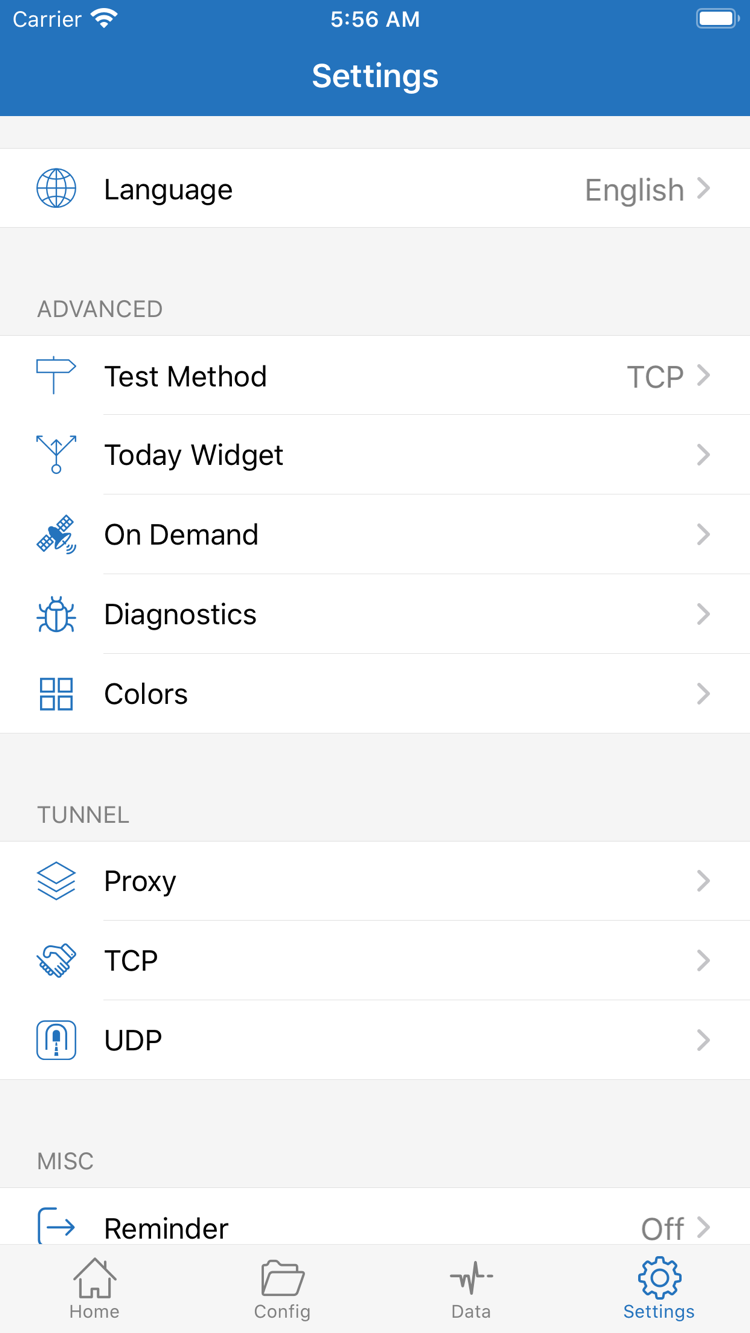
Before checking Test Method in Settings, understand what the current method measures. Results from different methods aren’t directly comparable, and a failed test doesn’t necessarily mean all real-world access is unavailable. When using Diagnostics, collect information about the same failed attempt and note the error type and where it occurred. Before sharing records, hide subscription links, passwords, authentication details, and sensitive personal connection data.
The Switch Is On, but Some Destinations Fail
Check Global Routing first. With Direct selected, requests won’t use a server just because one appears in the list. With Config selected, check whether the destination matched a rule different from the one you expected. Confirm that the right configuration file is selected, an earlier rule hasn’t already matched, and the policy group isn’t using a different server. If only certain domains fail, check related DNS and Hosts settings. Don’t start by changing DNS, TCP, UDP, and the Proxy port all at once.
In Settings, On Demand controls automatic connection conditions; Today Widget is for display and quick actions, not server settings; and Proxy, TCP, and UDP cover different connection settings. You don’t need to adjust all of these for a first connection. Change a setting only when there’s evidence it’s relevant, and note its original value so you can restore it. For details and guidance on when to use each option, see the Settings Reference.
Change one variable at a time, then repeat the test with the same destination. If a change doesn’t help, restore the original value before continuing. This makes it easier to tell whether the problem is with the underlying network, imported details, server connection, or rule selection—and helps avoid introducing new issues during troubleshooting. For more about subscription updates, system authorization, and connection issues, see the FAQ. Once basic connectivity works, continue with Rule Syntax and Matching Order.